ArcGIS Experience Builder
ArcGIS Experience Builder empowers users to quickly transform data into compelling web apps without writing a single line of code.
I worked with product engineers and developers to establish design process and guidelines. I also designed a few widgets and patterns across widgets.
Background
ArcGIS Experience Builder is a new product that allows users to drag and drop widgets into pages, design layout, add data, and configure widgets to make responsive web apps. The widgets can communicate and work with each other via triggers and actions, within a single page or across multiple pages.
Design Process
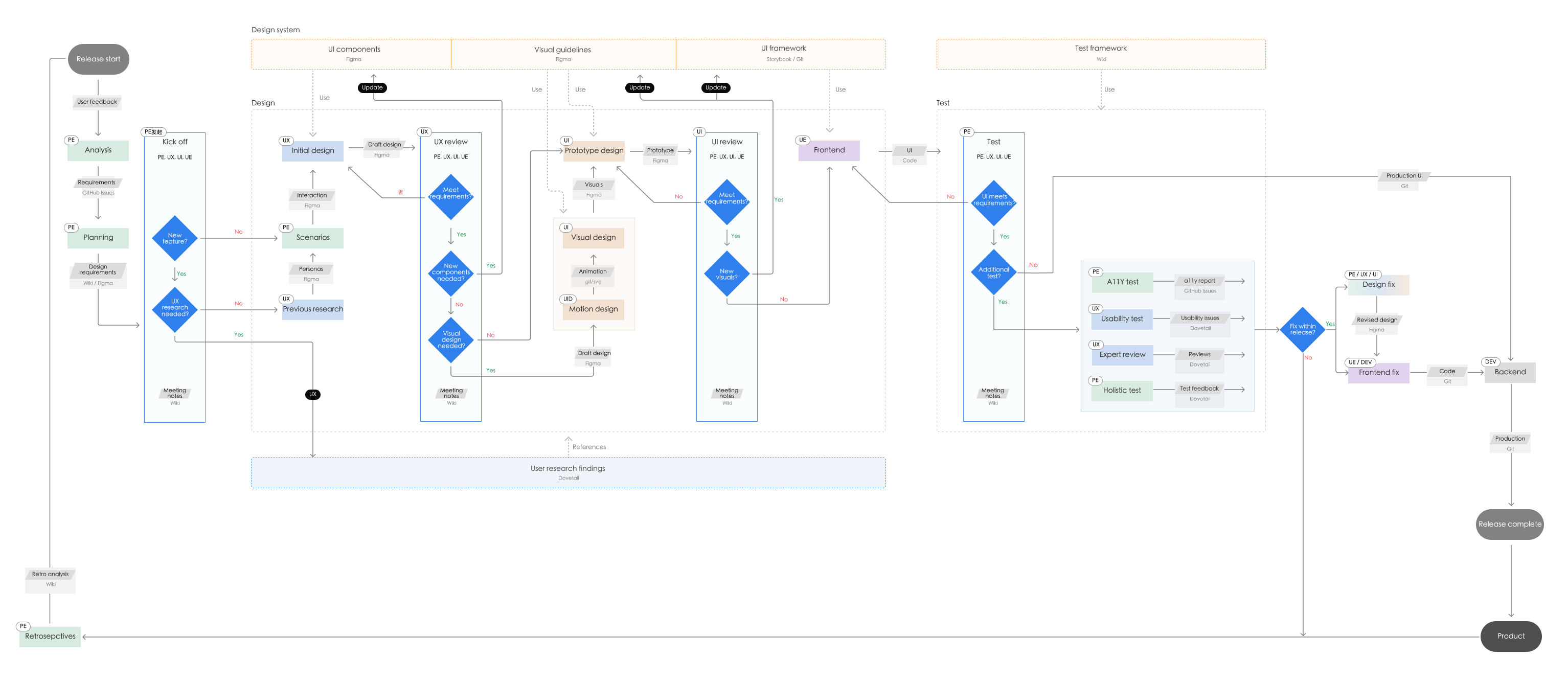
I joined the Experience Builder team as the first and only UX designer. The team had a few other roles: Product Engineers (PE), UI Designers (UI), UX Engineers (UE), and Developers (Dev). As the product was coming out of the beta phase and entering regular release cycles, the team needed to establish a design process to ensure quality design and implementation.
Through workshops and discussions with team members, I established a design workflow for release cycles. Notably, this workflow encourages achieving design complete one release cycle ahead, in order to create a buffer for the team to do iterations and testing.
Side Panel
I defined the role of side panel in Experience Builder and established UX best practices.
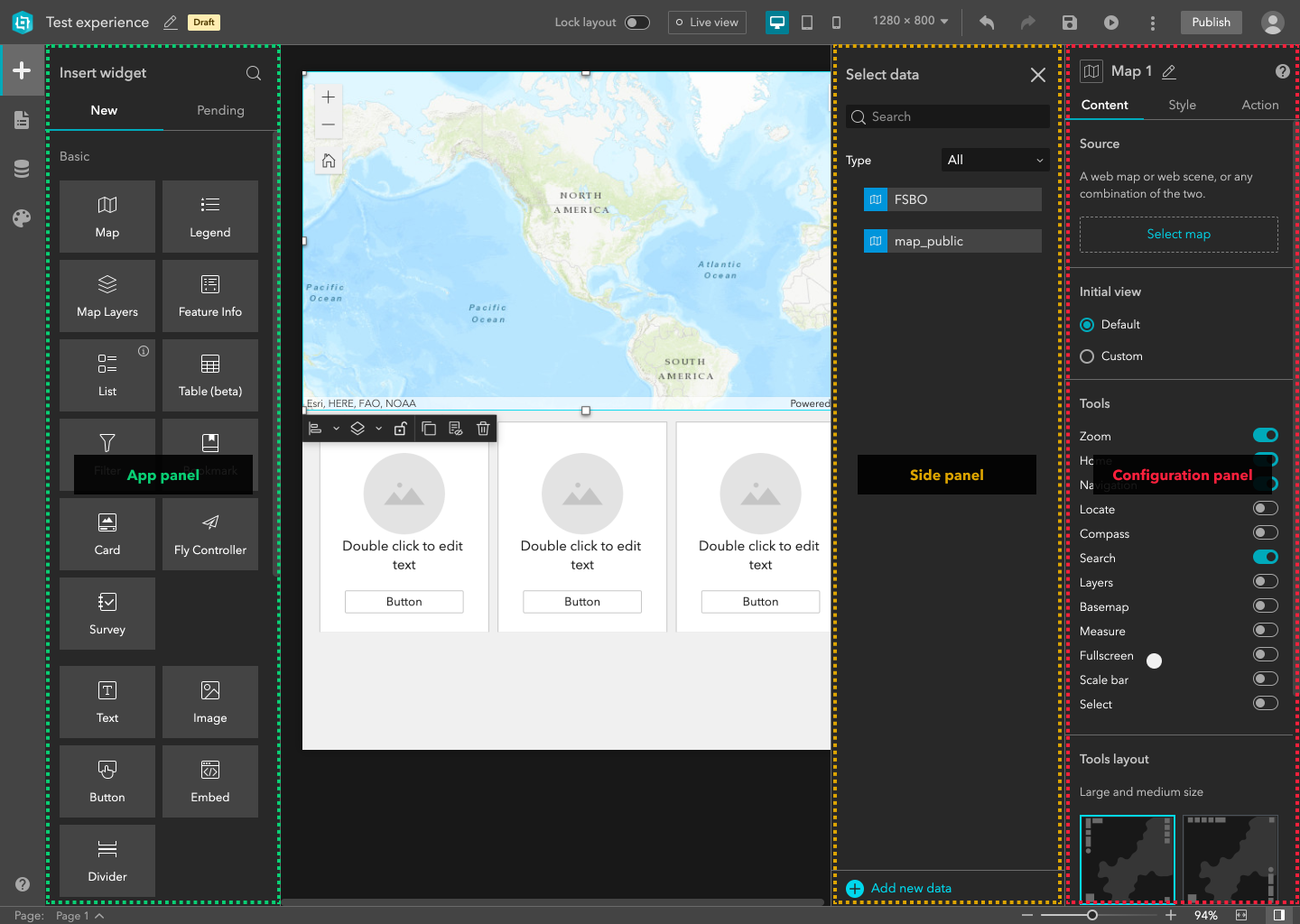
I clarified when to use a side panel: for helper functionalities or lower level details. More specifically, I defined the types of use cases for using side panels:
- Set up the target of an action
- Configure a new or existing property of a widget
- Set data source for a widget
I defined the information architecture of widget properties related to side panel.
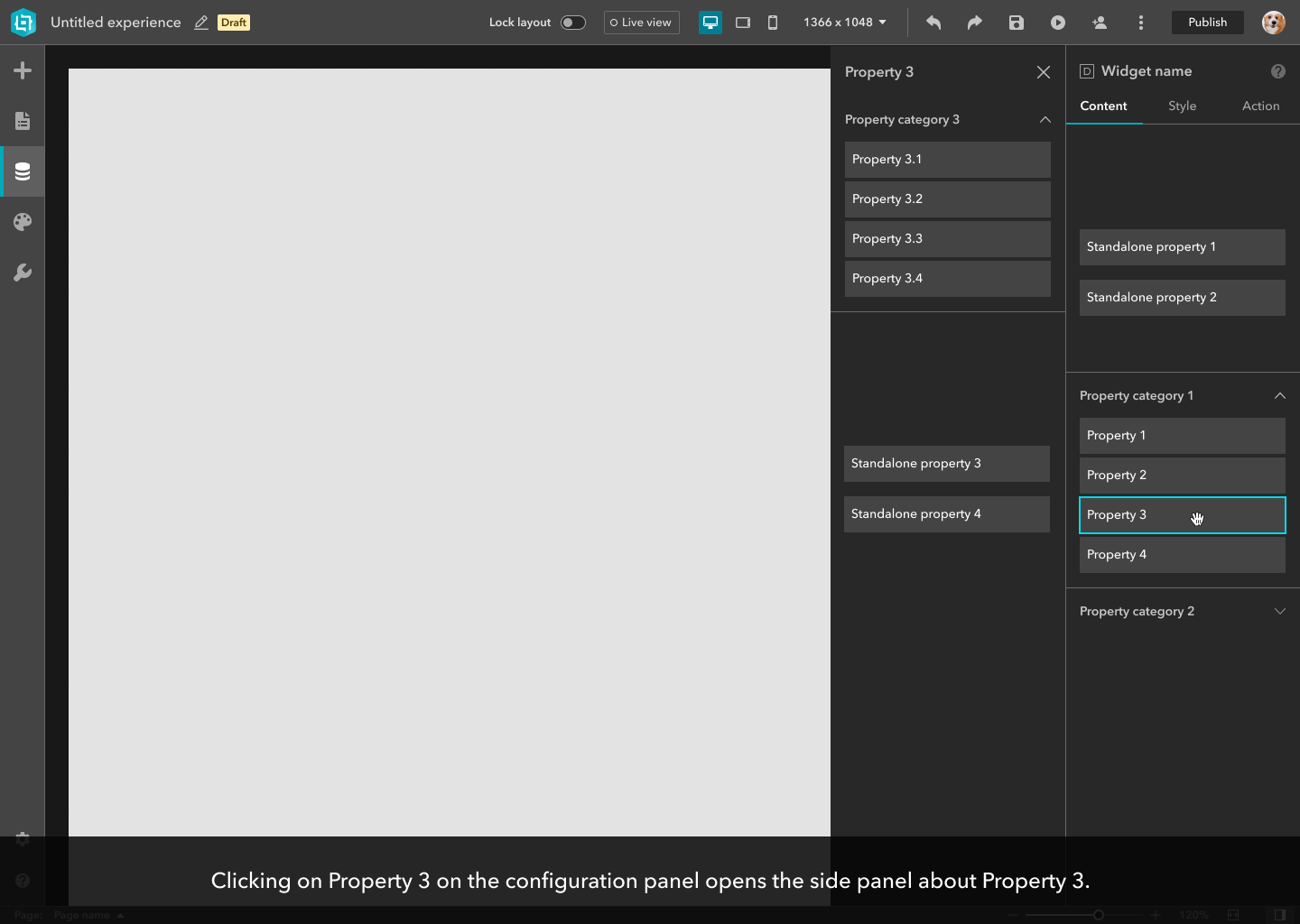
I reviewed implementations of side panel and established UX best practices:
- There should be only one side panel open at any time. When a side panel is open, and the user chooses another action that opens a new side panel, the previous side panel should be closed and replaced by the new side panel.
- Use side panel for workflows that could be separated from the configuration panel.
- Avoid triggering UI changes on both the side panel and configuration panel at the same time. This is to reduce the user’s cognitive workload of understanding UI changes on two panels.
- Avoid opening a new side panel on top and cover the existing side panel. Overlay the new side panel with smaller height and higher level.
- When data selection is done and no further action is needed on a side panel, provide clear cue (e.g., “OK”/”Done” button) for the user to close the side panel.
Error States
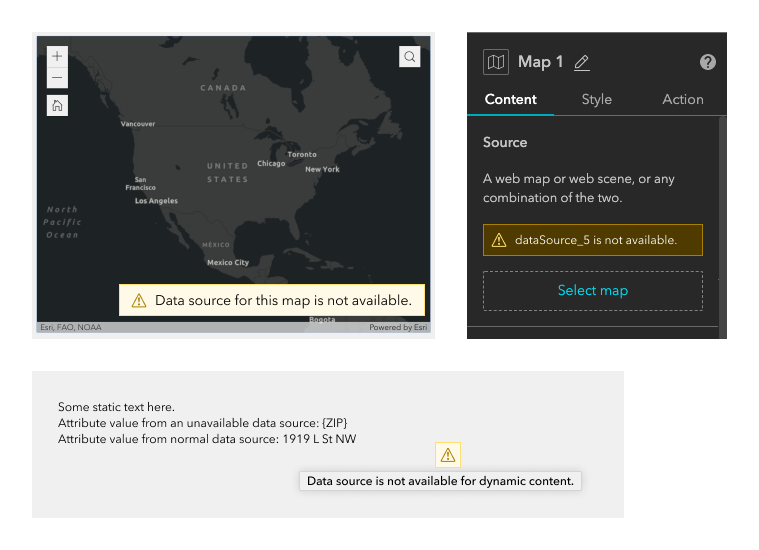
I designed the default error state for cases like unavailable data source, widgets not shown in current screen size, etc. The error state is for both the end user and app author.
Empty States
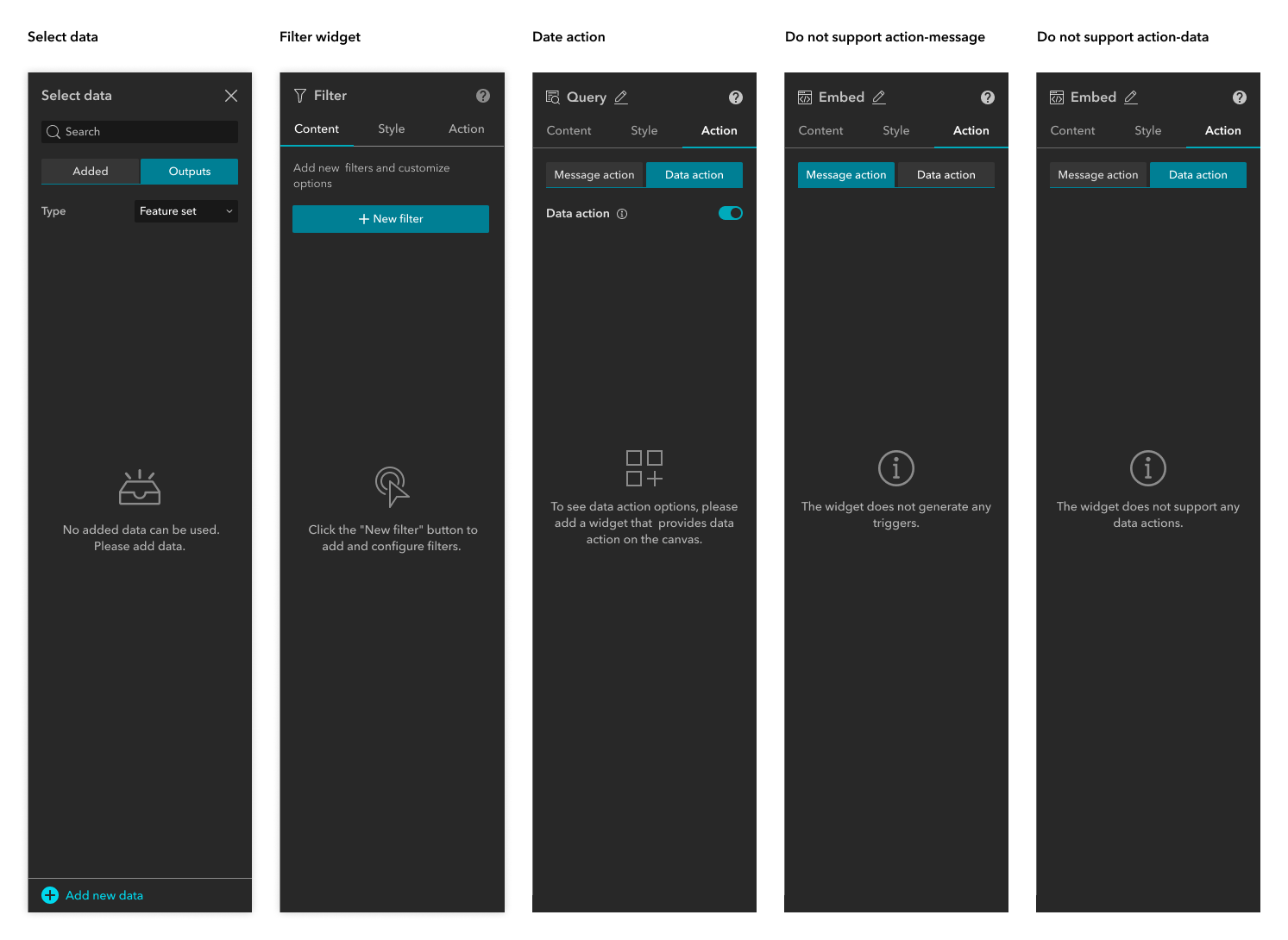
I designed the empty state for all widgets without any configurations and widgets that do not support triggers or actions.
Query Widget
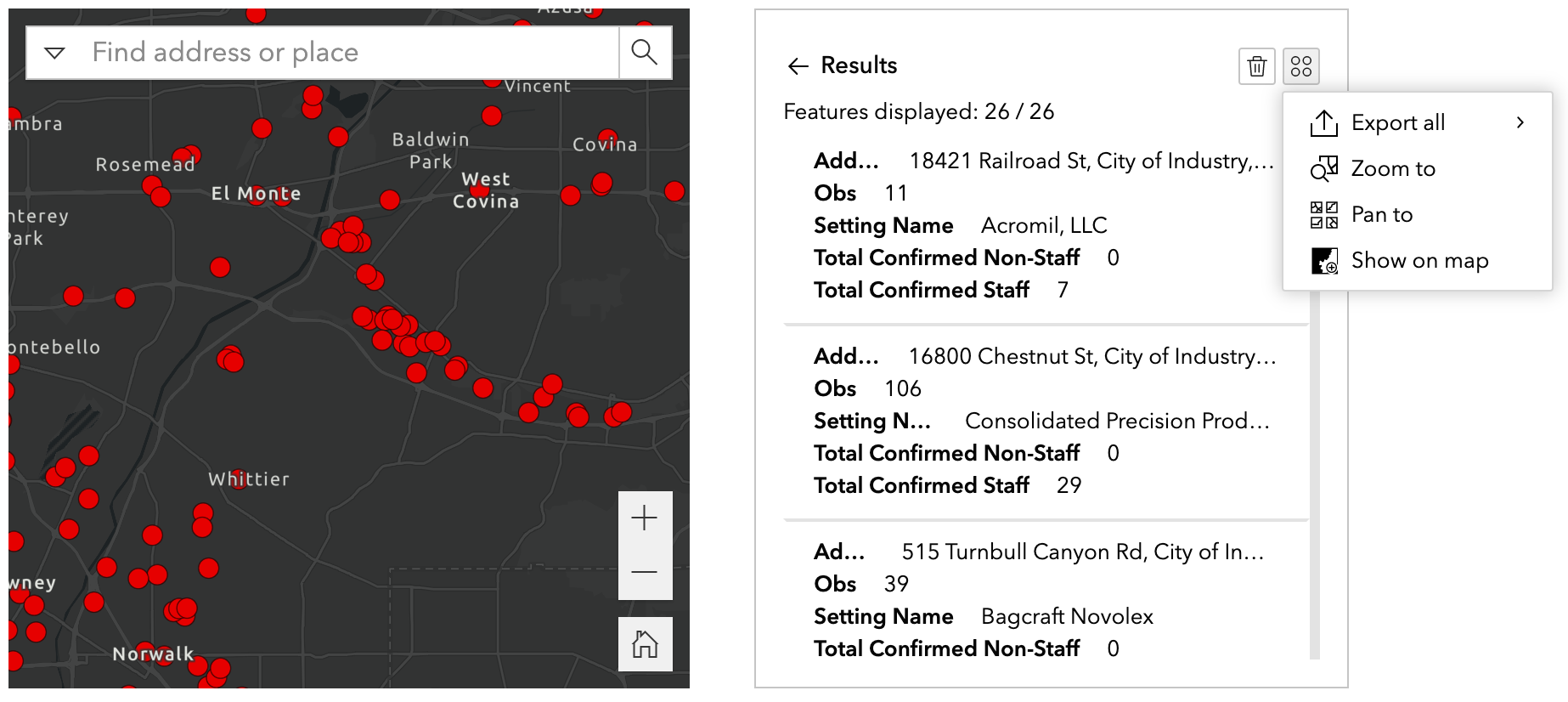
The Query widget allows the user to retrieve information from data sources by executing a predefined query. I added a tip component to give the user guidance within the widget configuration.
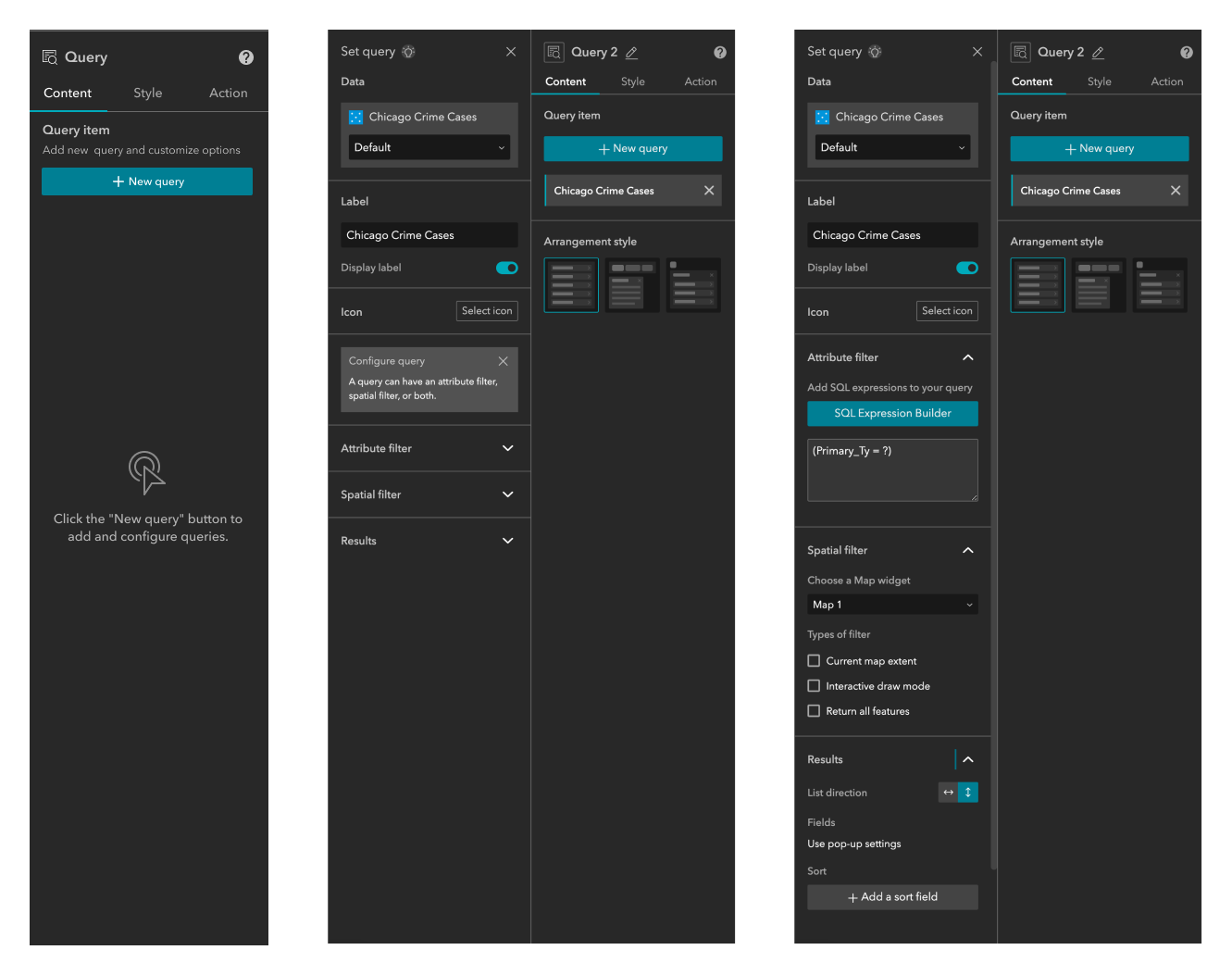
The user can configure SQL-based queries, or use interactive draw mode on the map to define the query.
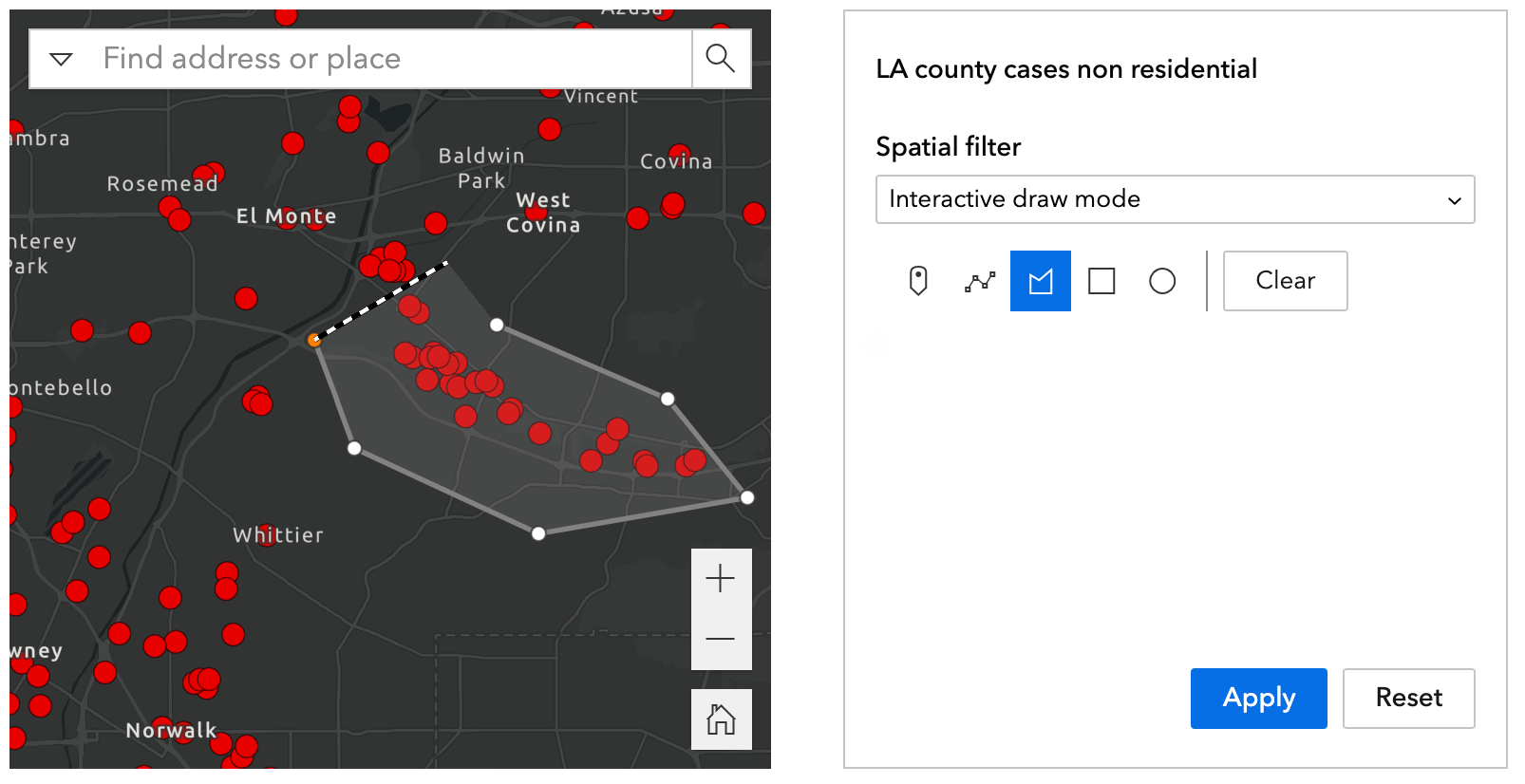
The Query widget generates a list of results, and the results support actions in Experience Builder like export, zoom to, pan to, and show on map.